이미지 넣기
<input type="file" accept="image/*" id="file">
html에 file타입의 input 태그를 추가한다. 이미지만 불러올 수 있도록 accept를 설정해 주어야 한다.
image/* 의 의미는 모든 이미지 파일만 허용한다는 뜻이다.
const fileInput = document.getElementById("file")
function onFileChange(event) {
console.dir(event.target)
}
fileInput.addEventListener("change", onFileChange);
getElementById로 작성한 input을 가져오고 change이벤트를 추가해준다. dir로 확인해보면
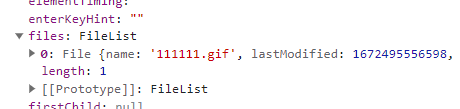
다음과 같은 목록이 뜬다.
function onFileChange(event) {
const file = event.target.files[0];
const url = URL.createObjectURL(file);
console.log(url);
}
file 상수에 event.target.files[0]을 저장해준다. 위에서 확인한 목록의 0번째 인덱스이다.
그리고 브라우저의 메모리에서 파일의 URL을 얻어온다.
이것을 콘솔로 확인해보면
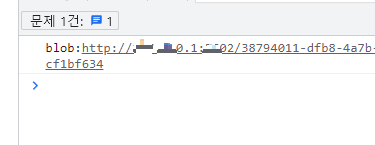
파일의 url이 뜬다. 이 경로를 그대로 주소장에 붙여넣기하면 이미지가 뜬다(blob까지 복붙해야 한다).
function onFileChange(event) {
const file = event.target.files[0];
const url = URL.createObjectURL(file);
const image = new Image();
image.src = url;
image.onload = function () {
ctx.drawImage(image, 0, 0);
}
}
이 url을 image.src와 연결해 준다.
image.onload는 addEventLitsener("load", 함수)와 똑같다.
drawImage를 이용하여 이미지를 캔버스에 그려준다.
0, 0은 이미지가 생성될 좌표위치이다. 뒤에 숫자를 더 추가하면 이미지 크기까지 조절할 수 있다.
이렇게 작성한 후 파일을 선택하면
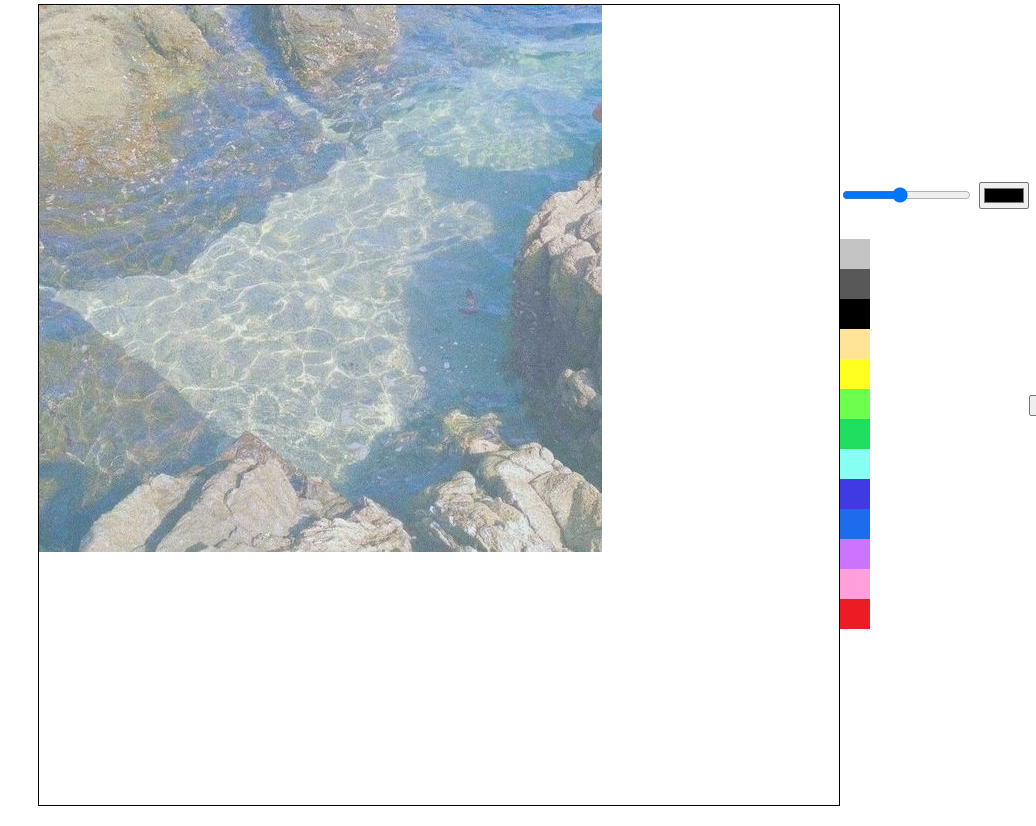
사진이 뜬다.
function onFileChange(event) {
const file = event.target.files[0];
const url = URL.createObjectURL(file);
const image = new Image();
image.src = url;
image.onload = function () {
ctx.drawImage(image, 0, 0, CANVAS_WIDTH, CANVAS_HEIGHT);
}
}
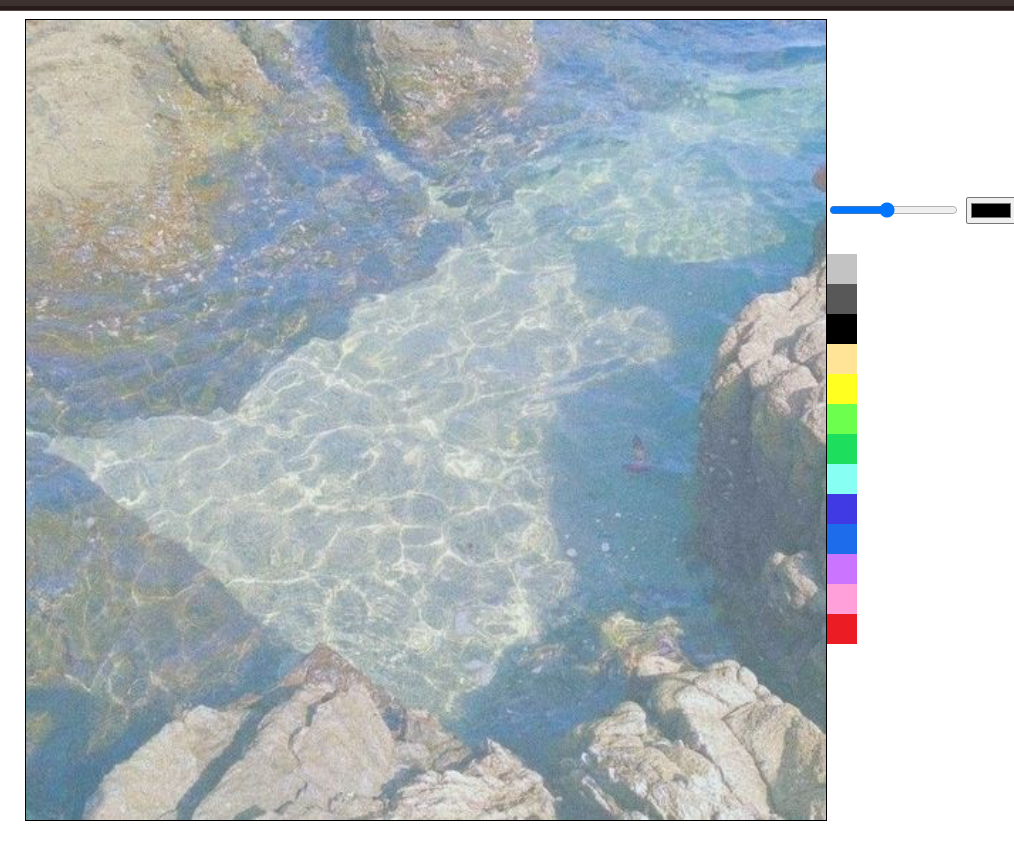
크기도 설정해 주었다.
텍스트 추가하기.
<input type="text" placeholder="입력 후 더블클릭" id="text">
html에 다음과 같이 추가
const textInput = document.getElementById("text")
function onDoubleChange(event) {
console.log(event.offsetX, event.offsetY)
}
canvas.addEventListener("dblclick", onDoubleChange);
캔버스를 더블클릭했을 때 이벤트를 추가해 준다.
클릭한 위치의 offsetX와 offsetY를 콘솔로 출력한다.

클릭한 위치가 출력된다.
function onDoubleChange(event) {
ctx.save();
const text = textInput.value;
ctx.lineWidth = 1;
ctx.strokeText(text, event.offsetX, event.offsetY);
ctx.restore();
}
함수를 다음과 같이 바꿔준다.
input안에 작성된 텍스트를 가져오고, strokeText를 이용하여 불러온 텍스트와 좌표값을 입력한다.
우리가 이전에 lineWidth 기본값을 5로 설정했기 때문에 1로 바꿔준다.
그런데 여기서 1로 바꿔주면 브러쉬의 크기까지 1로 바뀌는 문제가 생긴다.
그래서 ctx.save()를 이용해서 원래의 값을 저장한 후, 마지막에 ctx.restore()를 입력하여 저장된 값을 불러온다.
save()와 restore() 사이에는 어떤 수정을 하든 저장되지 않는다.
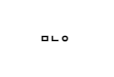
텍스트를 입력하고 캔버스를 더블클릭하면 텍스트가 출력되는 것을 볼 수 있다.
폰트변경
함수에 이걸 추가하면
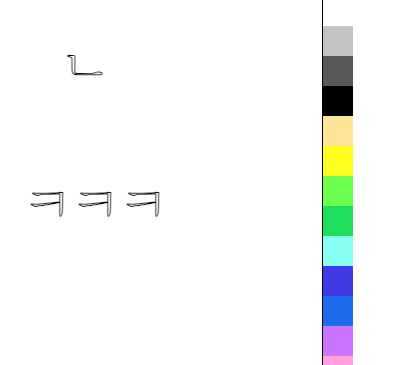
폰트 크기와 글씨체를 바꿀 수 있다. 근데 글씨를 보면 안이 비어 있는 것을 볼 수 있다. 이건 아까 strokeText로 했기 때문인데, 이걸 fillText로 바꿔주면
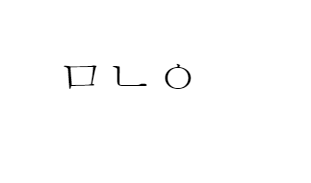
다음처럼 나온다.
function onDoubleChange(event) {
const text = textInput.value;
if (text !== "") {
ctx.save();
ctx.lineWidth = 1;
ctx.font = "48px serif"
ctx.fillText(text, event.offsetX, event.offsetY);
ctx.restore();
}
}
text가 빈 값이 아닐 때만 실행되도록 바꿔준다.
브러쉬 모양 둥글게 만들기
브러쉬 모양을 변경하기 위해서 lineCap을 이용한다
lineCap의 속성에는 butt, round, square이 있다. 여기서 round로 설정해 준다.
끝이 네모났던 브러쉬가 오른쪽처럼 둥글게 변하였다.
저장하기
<button id="save">Save image</button>
html
const saveBtn = document.getElementById("save");
function onSaveClick() {
canvas.toDataURL();
}
saveBtn.addEventListener("click", onSaveClick);
toDataURL이라는 메소드 사용
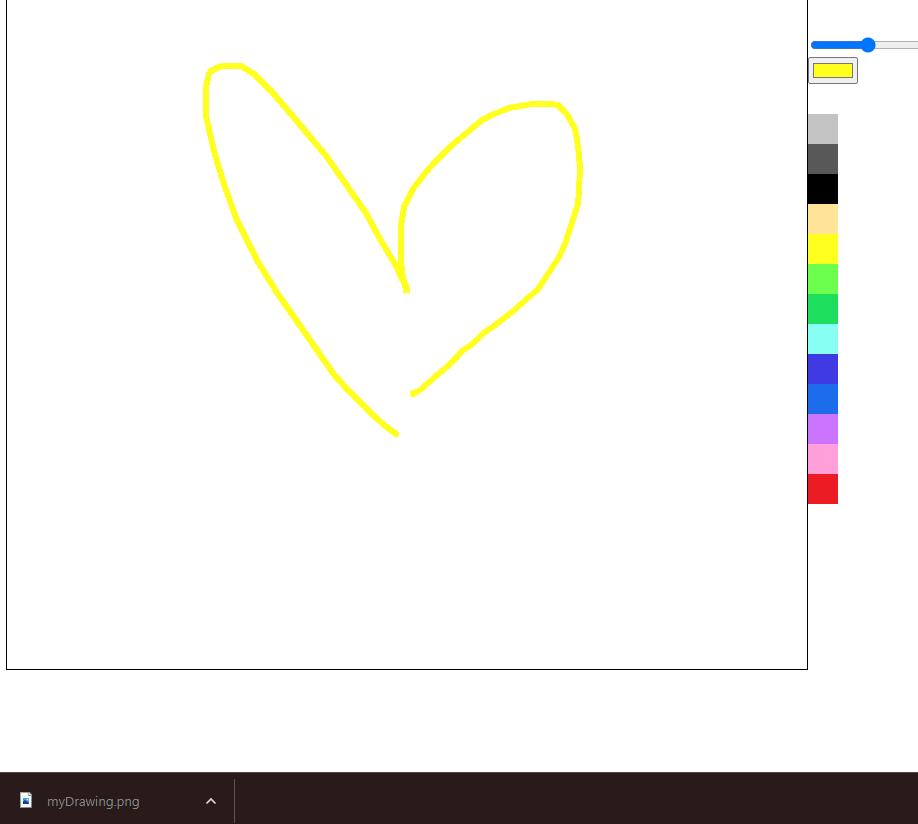
function onSaveClick() {
const url = canvas.toDataURL();
const a = document.createElement("a");
a.href = url
a.download = "myDrawing.png"
a.click();
}
캔버스에 그린 그림을 URL로 변환
a 태그를 생성해 가짜 링크 생성
링크의 href는 그림의 URL로 설정
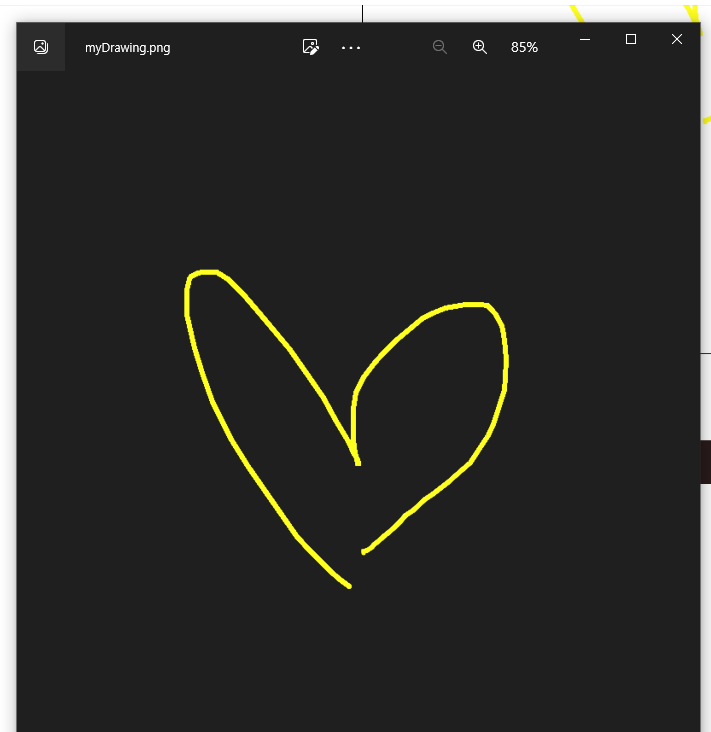
myDrawing이라는 파일명으로 저장되게 함
링크 클릭하면 이미지 저장됨
저장되었다.
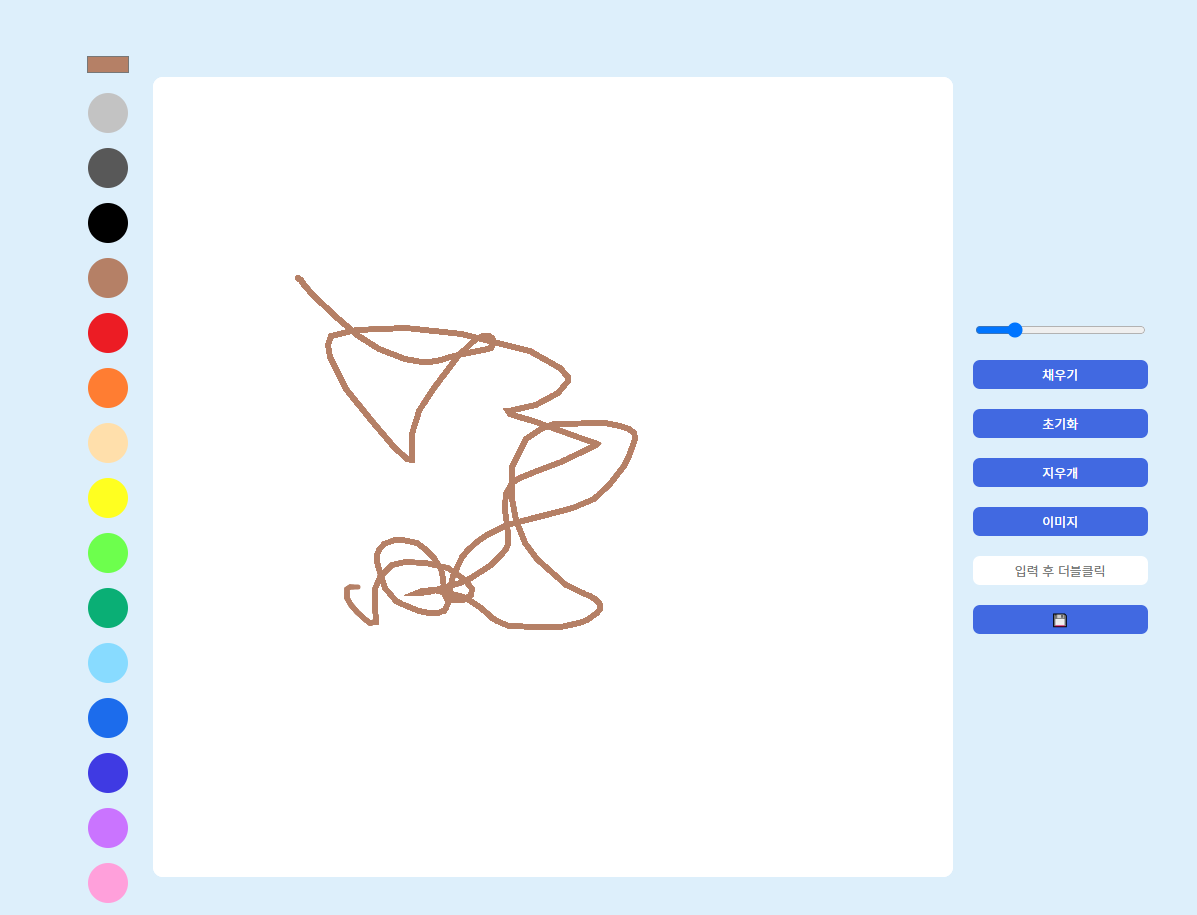
css 적용까지 하면 끝
코드
더보기
@charset "utf-8";
body {
overflow: hidden;
display: flex;
gap: 20px;
justify-content: center;
align-items: center;
background-color: #ddeffb;
padding: 20px;
}
canvas {
width: 800px; height: 800px;
background: #fff;
border-radius: 10px;
}
.btns {
display: flex;
flex-direction: column;
gap: 20px;
}
.color-options {
display: flex;
flex-direction: column;
align-items: center;
gap: 15px;
}
.color-option {
width: 40px; height: 40px;
border-radius: 50%;
cursor: pointer;
transition: transform ease-in-out .1s;
}
.color-option:hover {
transform: scale(1.2);
}
input#color {
background-color: #ddeffb;
border: none;
}
button {
all: unset; /* css 속성 전부 제거 */
padding: 5px 0;
text-align: center;
background: royalblue;
color: #fff;
font-weight: 400;
cursor: pointer;
border-radius: 7px;
transition: opacity linear .1s;
}
button:hover {
opacity: 0.85;
}
input#text {
all: unset; /* css 속성 전부 제거 */
padding: 5px 0;
text-align: center;
background: #fff;
font-weight: 400;
border-radius: 7px;
transition: opacity linear .1s;
}
input#file {
display: none;
}
label.label-file {
padding: 5px 0;
text-align: center;
background: royalblue;
color: #fff;
font-weight: 400;
border-radius: 7px;
cursor: pointer;
}
파일 업로드 디자인 바꾸는 법:
<label class="label-file">
이미지
<input type="file" accept="image/*" id="file">
</label>
label 태그 안에 넣어 준다
input#file {
display: none;
}
label.label-file {
padding: 5px 0;
text-align: center;
background: royalblue;
color: #fff;
font-weight: 400;
border-radius: 7px;
cursor: pointer;
}
파일에는 display: none; 으로 보이지 않도록 해 주고
라벨 태그를 원하는 대로 디자인 해주면 된다